
Overview
Subkeys are additional API keys for your account. Each one has its own expiration date and its own credit allowance. Use them to give a specific integration or use case access to the API while capping how many credits it can use.
Subkeys are managed in the TourSolver Back-Office, under Configuration > Roles & Profiles > API keys, on the Subkeys tab.
Create a subkey
- Log in to the TourSolver Back-Office.
- Go to Configuration > Roles & Profiles > API keys.
- Click the Subkeys tab.
- In the table, click Actions to create a subkey.
- Fill in the following:
- Name: a name for the subkey.
- Description: what the subkey is for.
- Enabled: turn the subkey on or off.
- Expiry date: the date the subkey stops working.
- Fill in the following:
- To limit how many credits the subkey can use, turn on the daily credit limit and enter the credits allowed per day.
- Click Save.
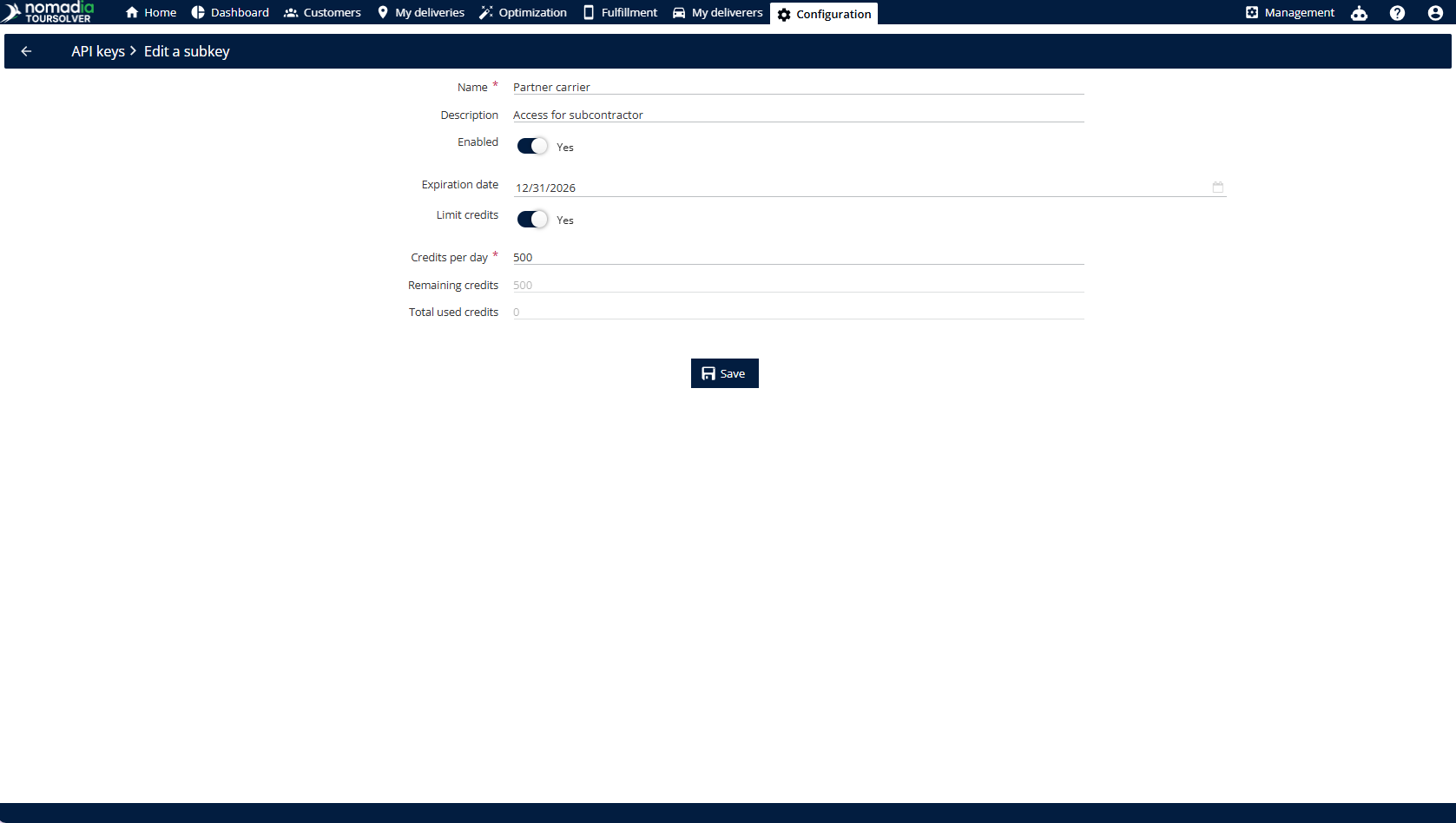
Daily credit limit
A subkey can only use the credits assigned to it. Once it reaches its daily limit, the API returns a daily limit error for any further requests made with that subkey.
The limit applies only to that subkey. Other subkeys and your main API keys keep working.
Good practices
- Use one subkey per integration. This lets you track and cap each integration's credit usage on its own.
- Set the daily limit to match expected usage. If the limit is too low, requests fail before the end of the day.
- Watch expiry dates. Extend a subkey's expiration date before it expires so the integration keeps running.
- Disable a subkey you don't need for now. You can turn it back on later without creating a new one.
- Monitor credit usage. The table on the Subkeys tab shows each subkey's remaining credits and total credits used. Check it regularly to spot a subkey that is close to its limit.